Main Features
1. Inventory Management
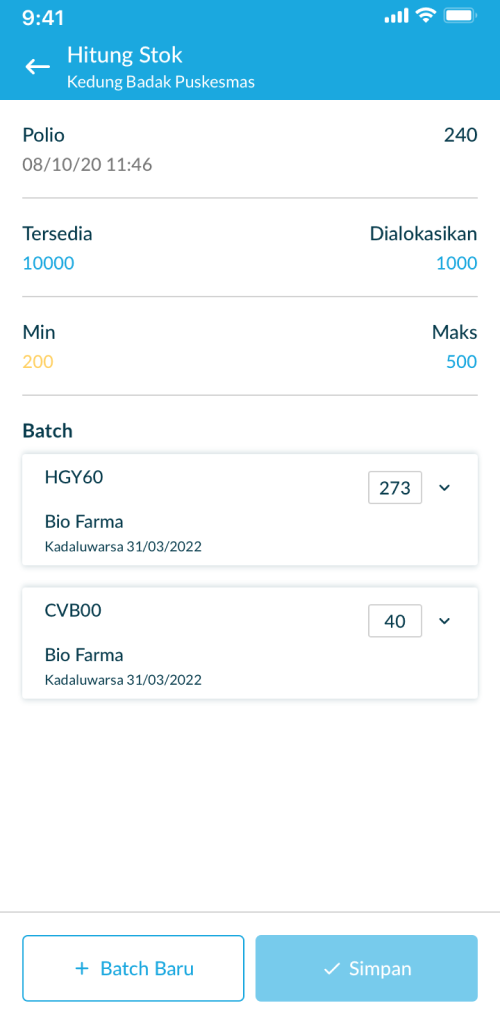
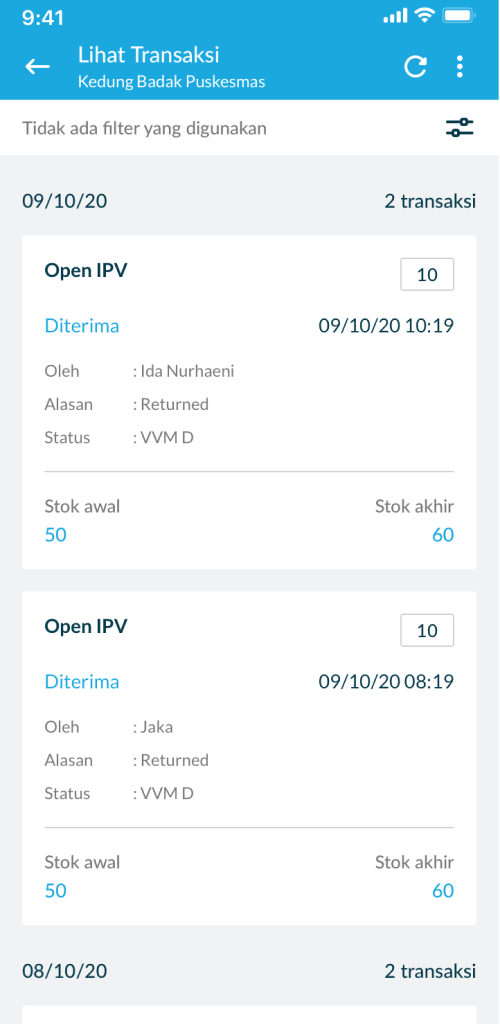
The objective of the inventory feature is to display the information of entity stock and all transactions (batch, material status, transaction date) in every entity group from District to Sub-District Puskesmas. In this feature, health officers can update manually the number of each vaccine.
This inventory feature consist of several functionality including:
View the list of Sub District Puskesmas
Displays the Puskesmas entity stock information. Districts and Puskesmas entity groups throughout the Districts on each inventory transaction- Seeing the stock by leveling entity groups of Puskesmas from District to Sub-District
Conduct a “local transfer” of stock from the Puskesmas. District to Sub-District Puskesmas through the “Enter Stock Amount” feature
Logical adjustment of inventory data on an entity (sub-district health center / sub-district health center) and an entity group (accumulated health center in the sub district)
Perform filter / search On all features in the inventory (See Stock, Enter Amount of Stock, Input Expenses) when selecting Vaccines
- View summary chart of all statuses:
Display status percentage (normal, max, min and out of stock)
Total items from many entities
Total items in each status
Clickable to change the list
Affected by inventory filters
View a list of entities according to their region affected by inventory filter and material status
View the list of provinces, affected by inventory filter and material status (Only accessible by national level users)
View the list of districts/cities, affected by inventory filter and material status (Only accessible by national and provincial level users)
View entity details
The name of the entity and the provinces
List material on the entity with the amount of stock and the last date of the material transaction
Total items
- View stock detail:
Overview: Material name, entity name, province-city, Material Tag
Stock on hand: date, amount of stock remaining in entity , bar chart of its min-max and stock point, amount allocated & amount shipped
View of list material:
Status percentage
Material name
Total entities according to the status of the total of all entities in the current region
Affected by inventory filter and material status
Click material:
Material name
Total entities
View the list of entities with the amount of stock according to the material in the entity. Entity list according to the current region
The last date of the material transaction
2. Order Management
a. COVID19
b. Routine Immunization
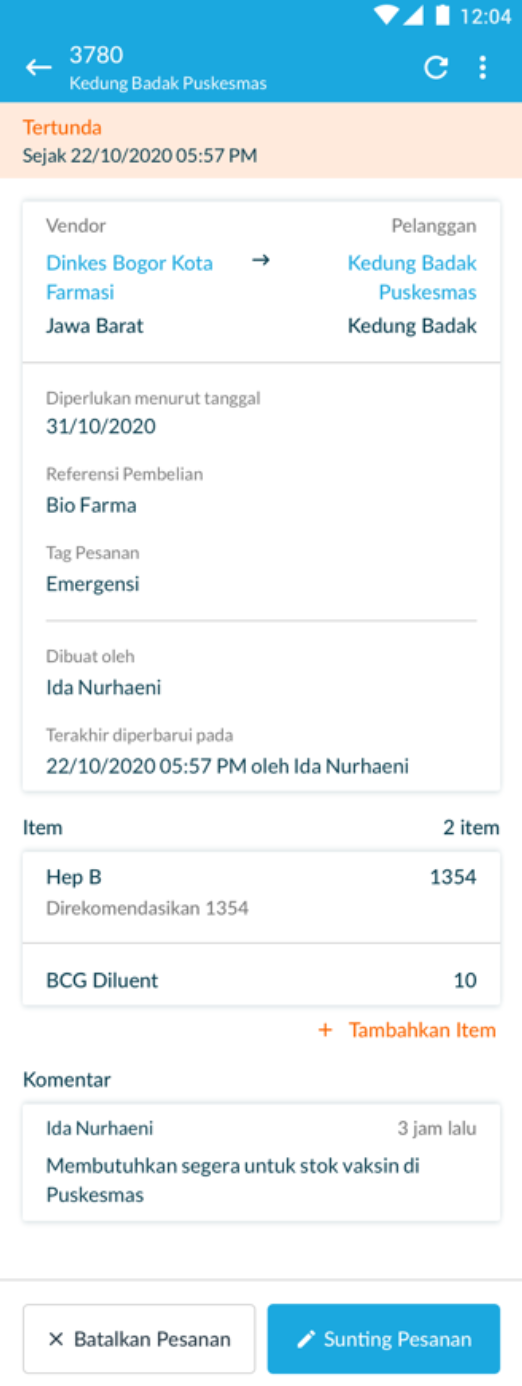
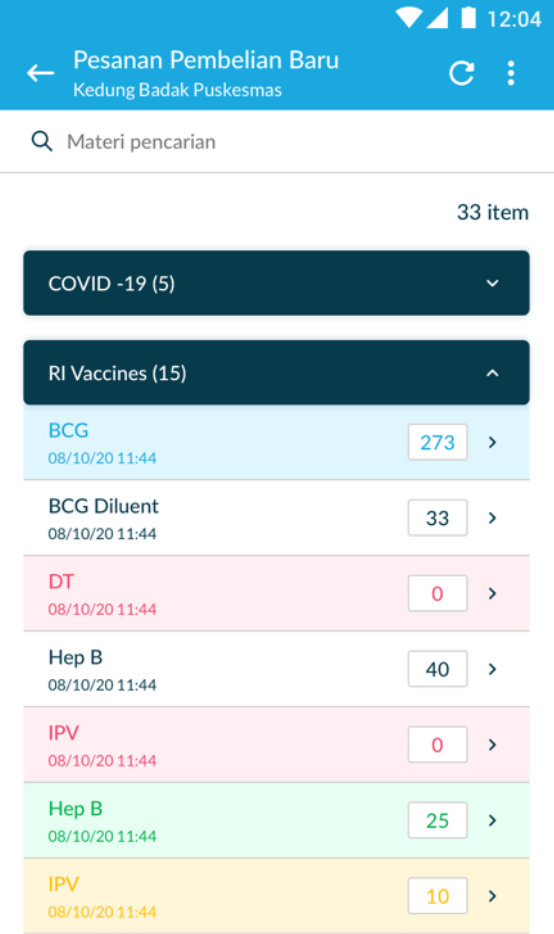
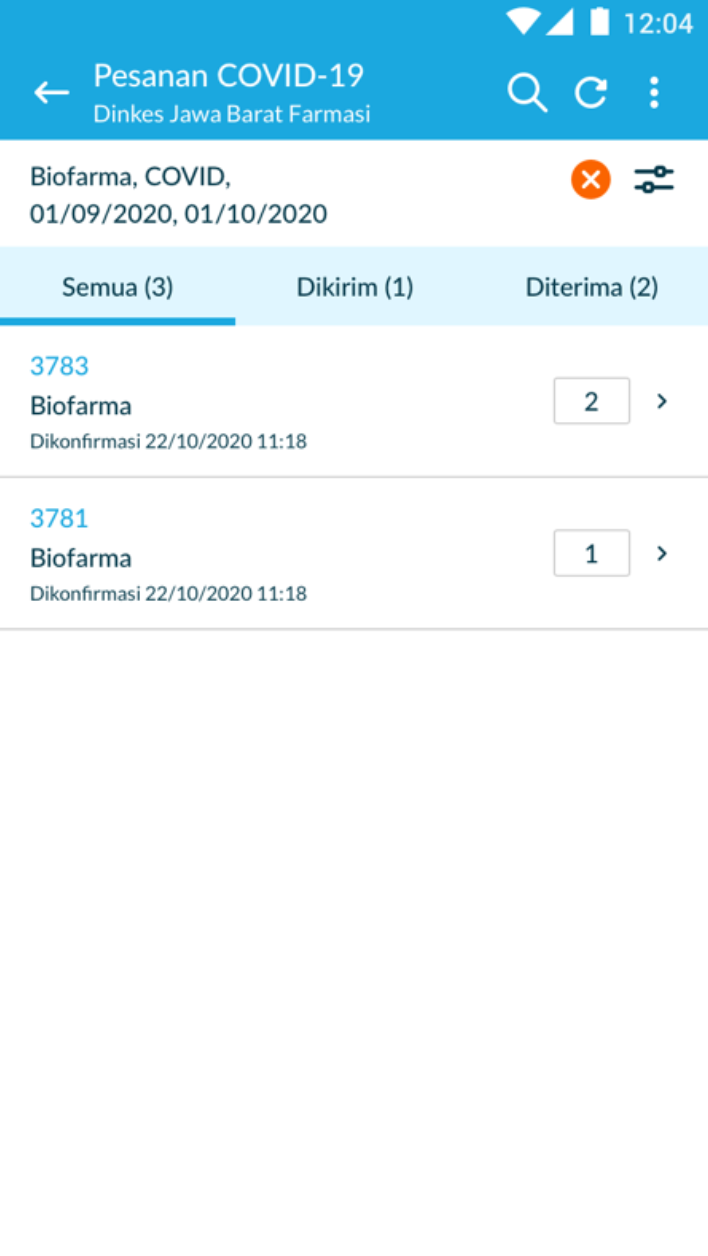
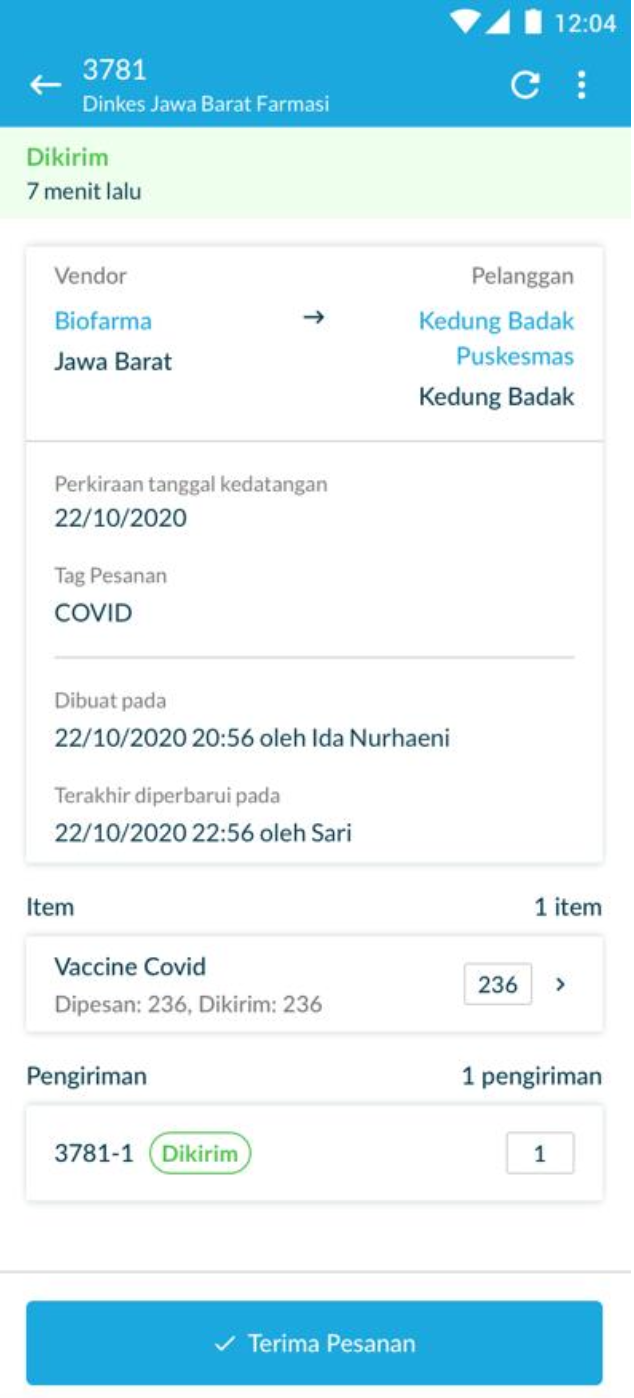
The order management feature for both routine vaccines and Covid19 vaccines displays all transactions made in the order process. In this case, health workers place orders and receive orders (for purchase) of vaccines. Users can also track the ordering process, for example when there is a mismatch in the quantity along with the reason. Health workers can make orders with the optimal number of orders according to system recommendations. Order management also functions as an update of the amount of stock in a facility if there is a change when there is an order and stock delivery. In this feature, we can see the number of vaccines sent and received. Monitor the process of purchasing vaccines, purchase history to export order data.
Some of the main features of Order and fulfillment management: - Purchase order - Sales order - Export order data - Order shipment tracking - Order tracking history - QR code for VIAL
3. Asset Management
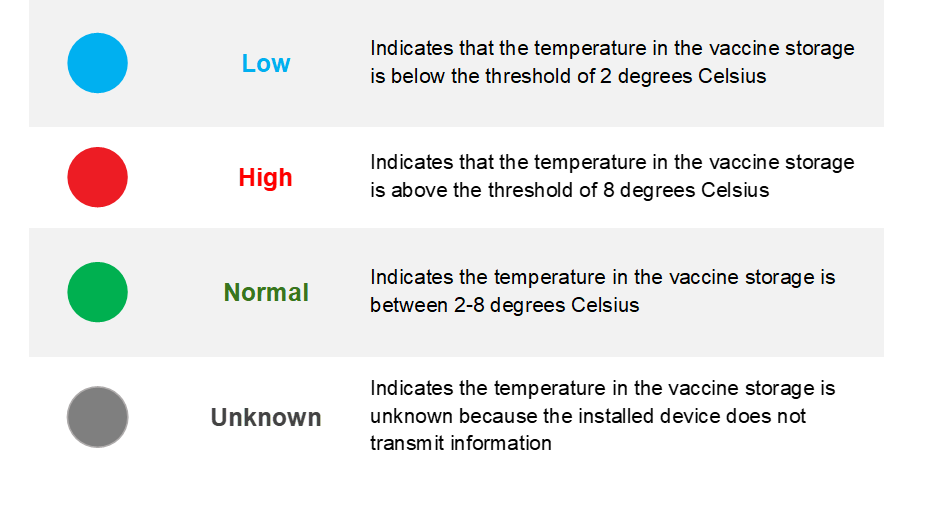
The objective of the asset feature is to monitor, create, edit, and update the asset (temperature logger and refrigerator). It is easy to create a new asset by filling out the form in the website menu. The user can monitor the latest temperature from the logger and also get notified if the temperature is over the threshold value.
Temperature Logger Monitoring
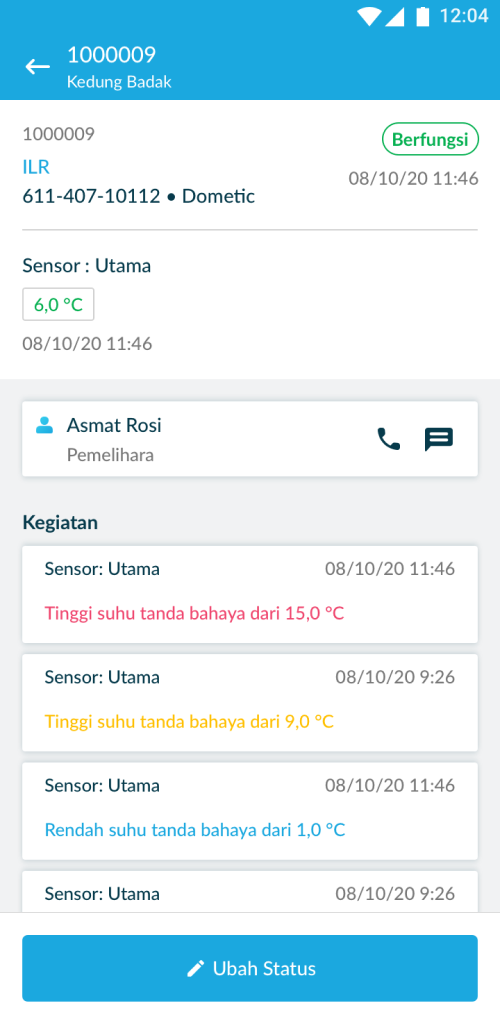
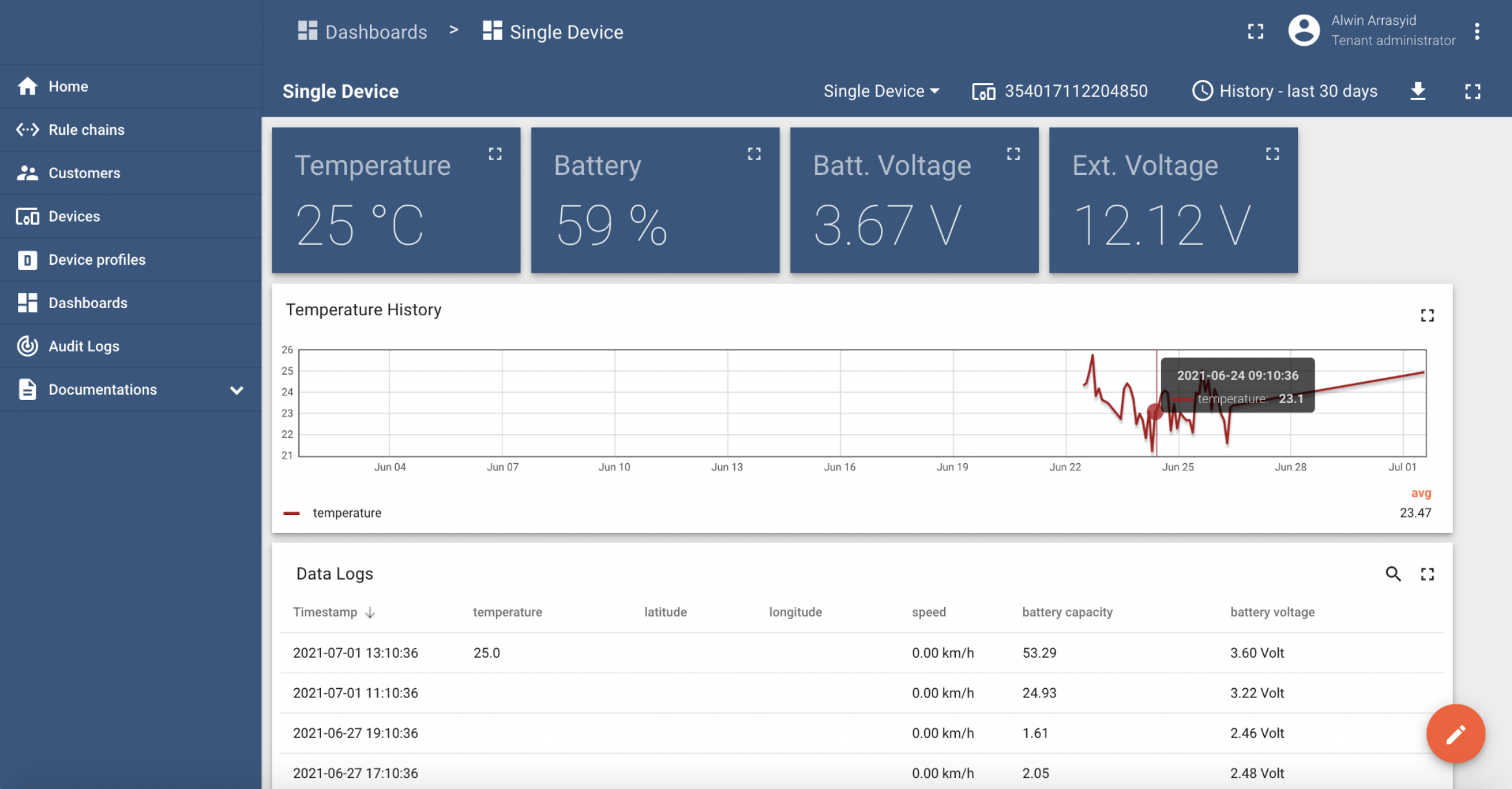
Temperature Logger monitors the temperature in the refrigerator in real-time and sees how the condition of the refrigerator, battery capacity, battery voltage, and views temperature history for a certain period. Health officers periodically check temperature compliance and asset status. Through this function, health officers can monitor whether the refrigerator is functioning properly and does not experience problems such as power failures, malfunctions, etc. This feature monitors the temperature 24 hours a day and the sensor inside the refrigerator transmits signals every 10 minutes to the application.
When a problem occurs, the system will automatically give an alarm via SMS to the Puskesmas staff to take protective actions against the vaccine, such as resetting the refrigerator thermostat, or moving the vaccine to a cool box, or temporary refrigerator until the refrigerator temperature returns to normal.
4. Dashboard
a. COVID19
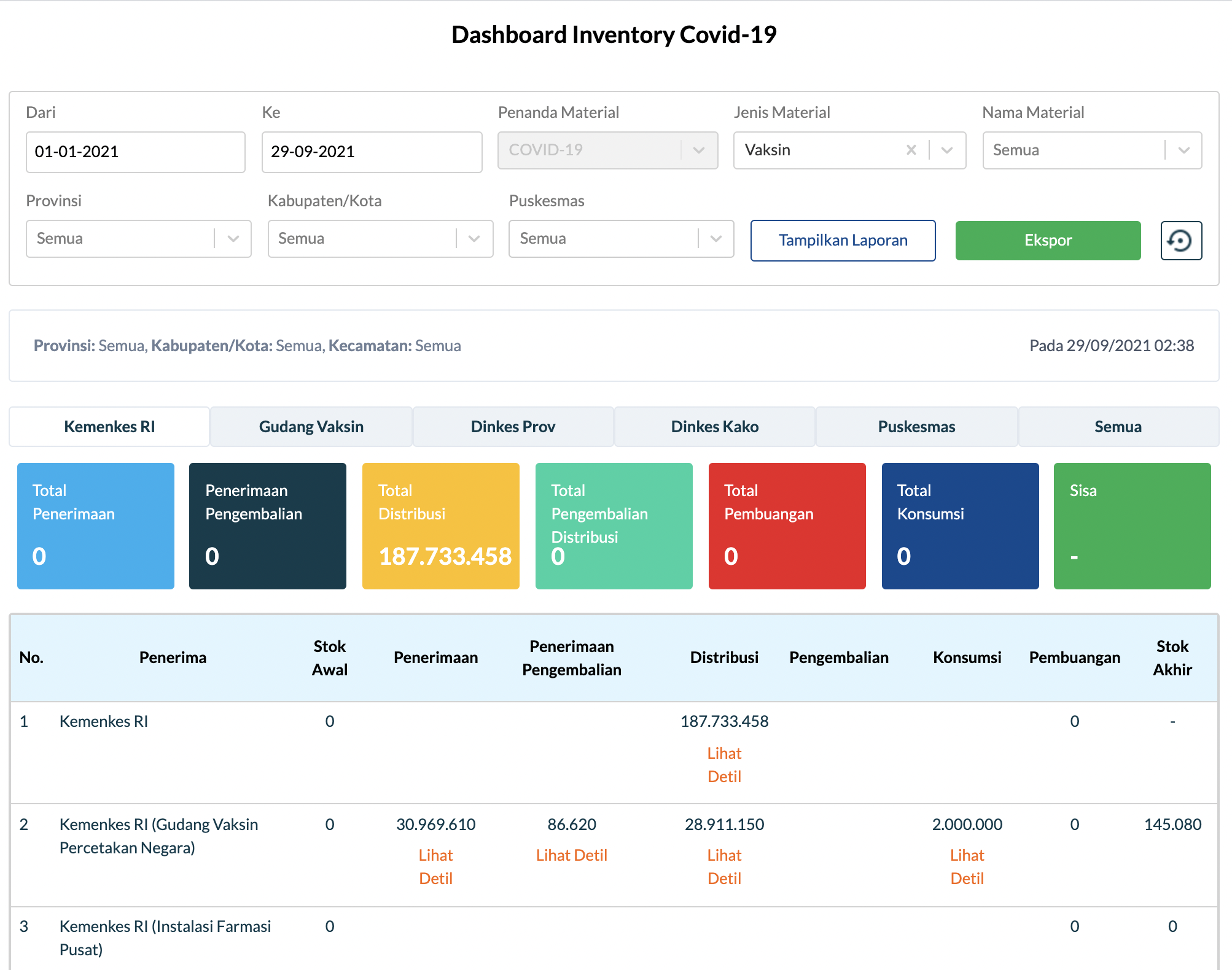
We may examine detailed statistical data on the total distribution of Covid-19 vaccinations in the Covid-19 Inventory Dashboard. The data shown is real-time data from the Indonesian Ministry of Health, vaccination warehouses, Provincial Health Offices, City District Health Offices, and Community Health Centers.
Total receipts, returns, distributions, distribution returns, total disposals, total consumption, and remaining vaccine supply are all displayed on this dashboard. There is a filter option that allows us to search by time, material tag, material type, material name, province name, city district, and health facility. Reports displayed in this dashboard can be exported to make it easier for users to analyze the data.
b. Routine Immunization
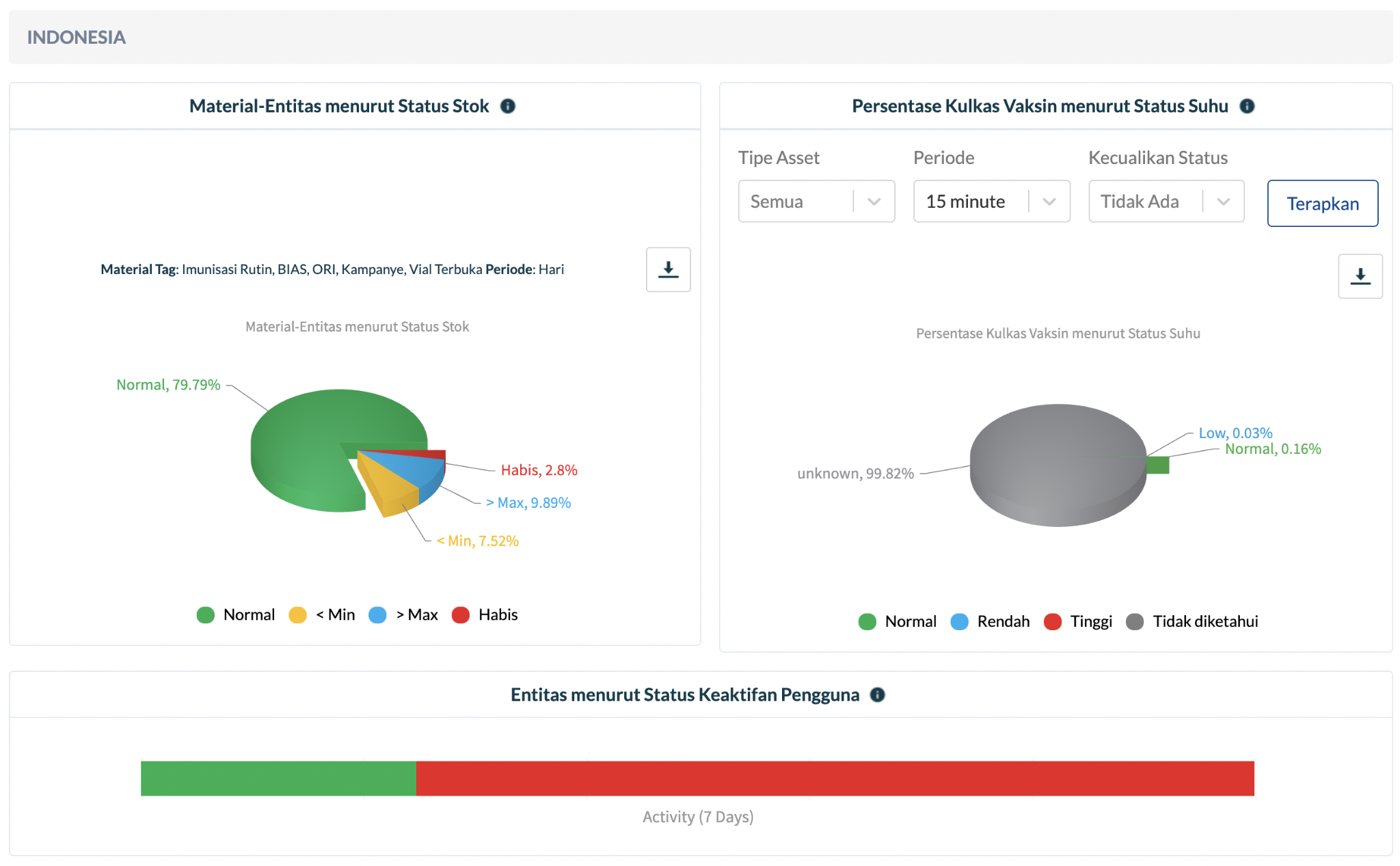
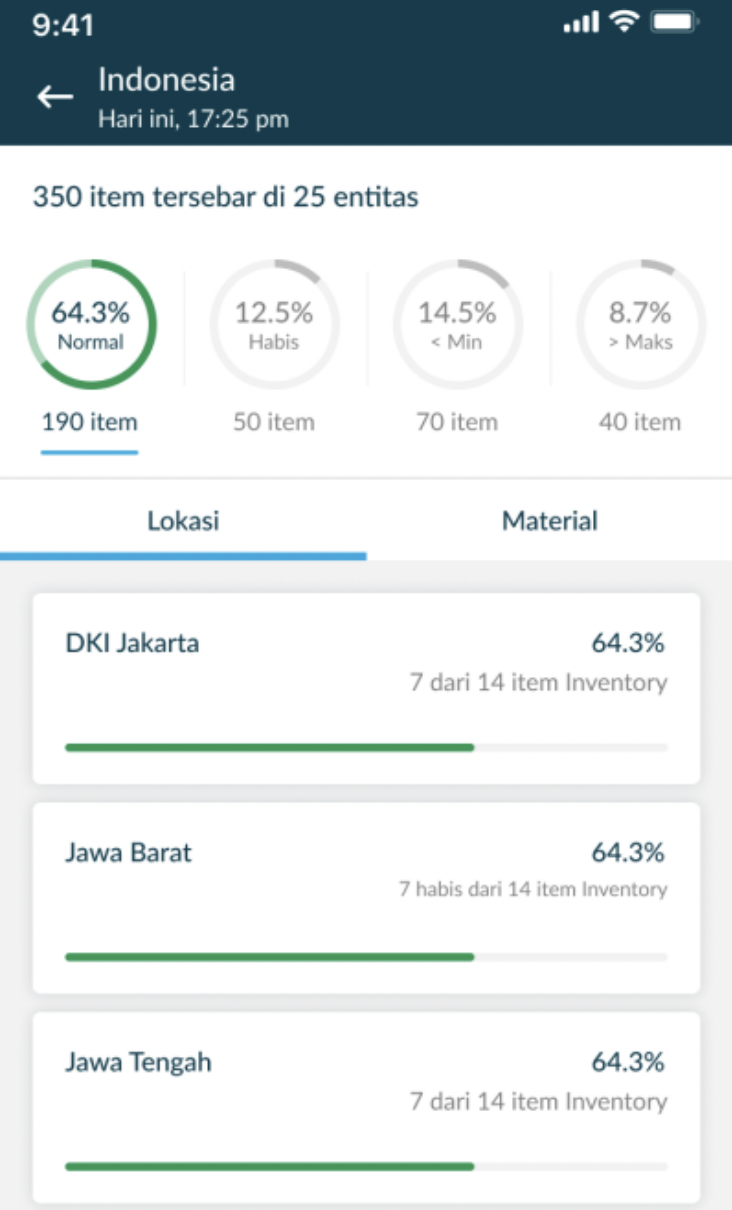
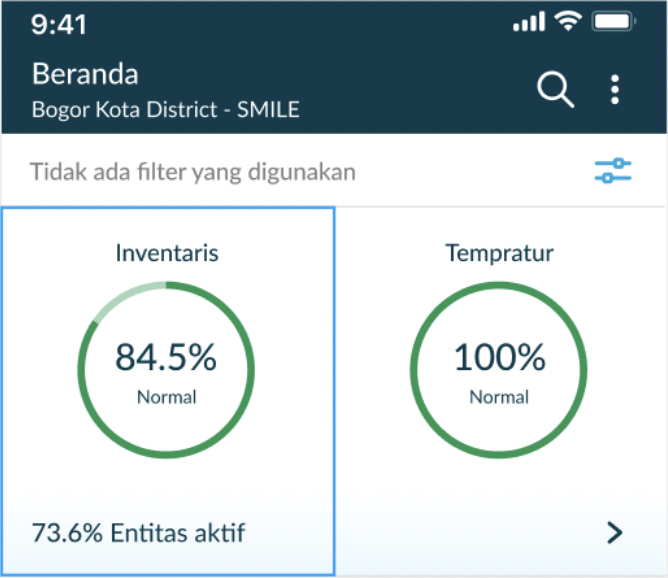
All data displayed in the Covid dashboard is also contained in the routine dashboard. The difference is that the routine dashboard displays other routine vaccines such as BCG, polio, diphtheria, and so on. This routine vaccination dashboard also shows overview data such as refrigerator temperature for vaccine storage, stock activity, leveling entity, and other information.
5. Report
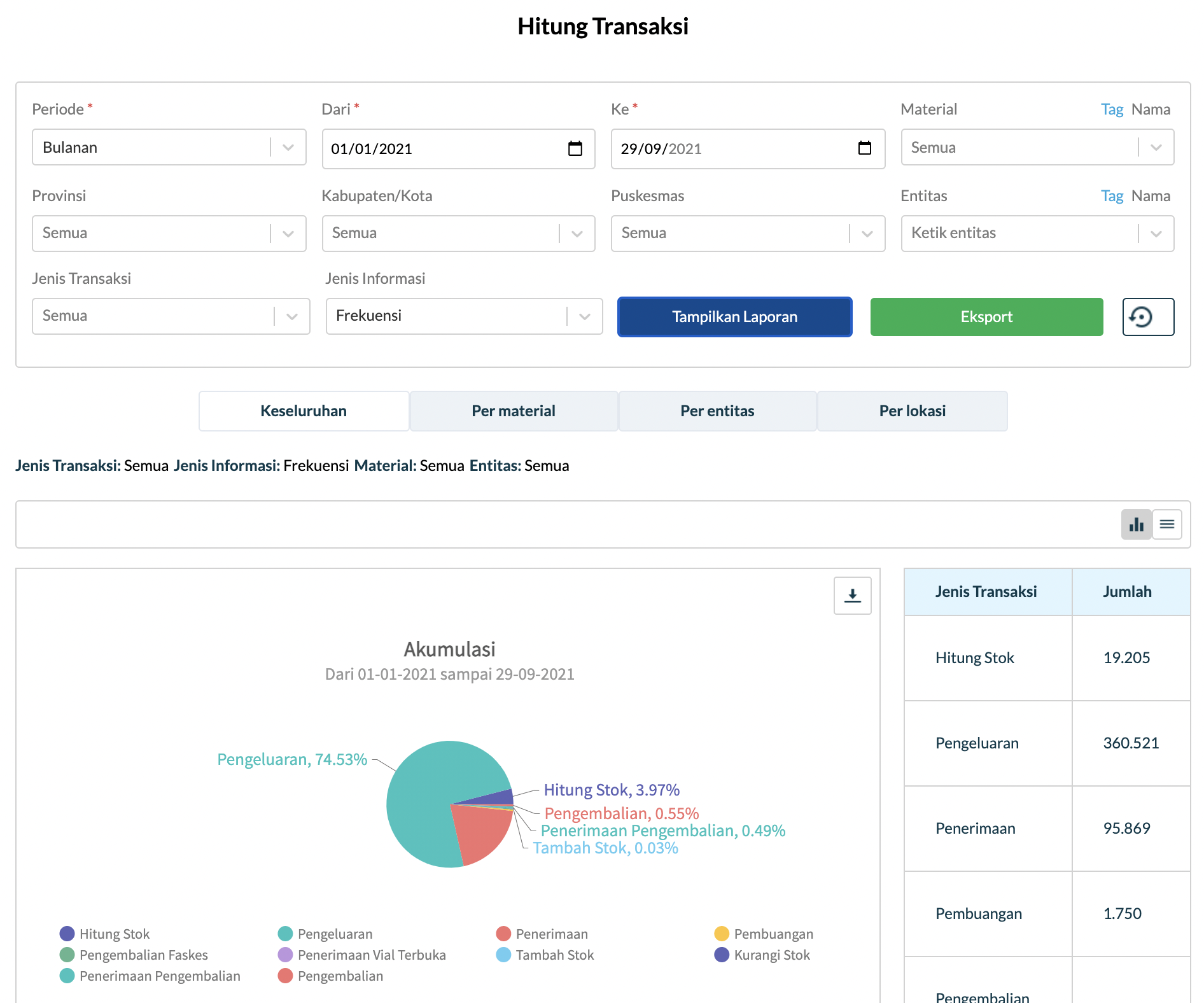
The SMILE dashboard can display comprehensive reports on all types of vaccine transactions with category-based filter options, so that reports can be tailored to the user’s wishes. In general, vaccine transaction reports can be viewed as a whole, per material, per entity and per location. In this case the report will show the amount of existing stock, expenses, receipts, disposal to returns.
The reports available in this report feature include: - Consumption report - SBBK report - Log book report - Transaction report - Stock overview report - Asset report - Filter/search report based on category - Export report (inventory, order, asset, master data)
6. Vaccine Planning
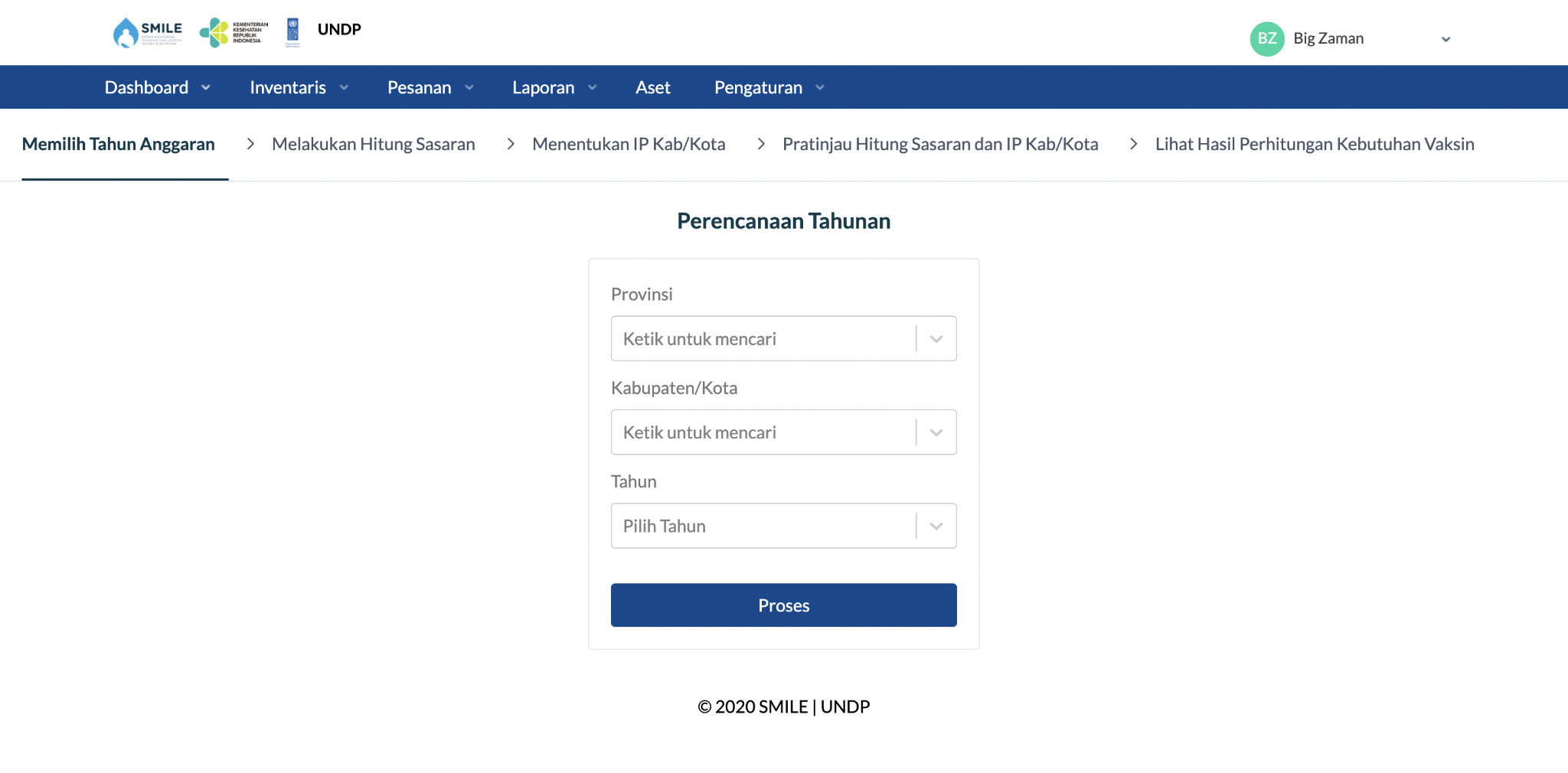
The District/City Health Office uses the Annual Planning function to calculate vaccination requirements and routine immunization logistics for one year. Typically, this calculation is performed toward the end of the year (2021) for the requirements of the following year (2022).
Calculation of vaccine needs & logistics is measured from the number of vaccination targets consisting of live births, surviving infants, infants under two years of age, 1, 2, 5, and 6-grade students, and women of childbearing age (including pregnant women) multiplied by the number administration of each vaccine, then divided by the index of the use of each vaccine.
Number of Needs
=(Number of Targets * Number of Vaccination Administration) / (Index of Vaccine Use)
The Annual Planning for the next vaccine distribution including: - Configuration management - Conversion table - Create forecast bottom up - List, detail publish, adjust, delete forecast - Realization management
7. Disposal Management
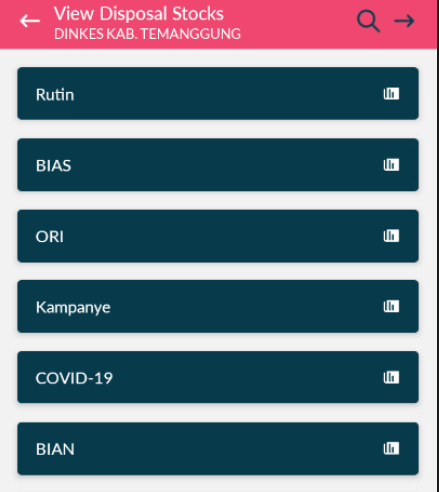
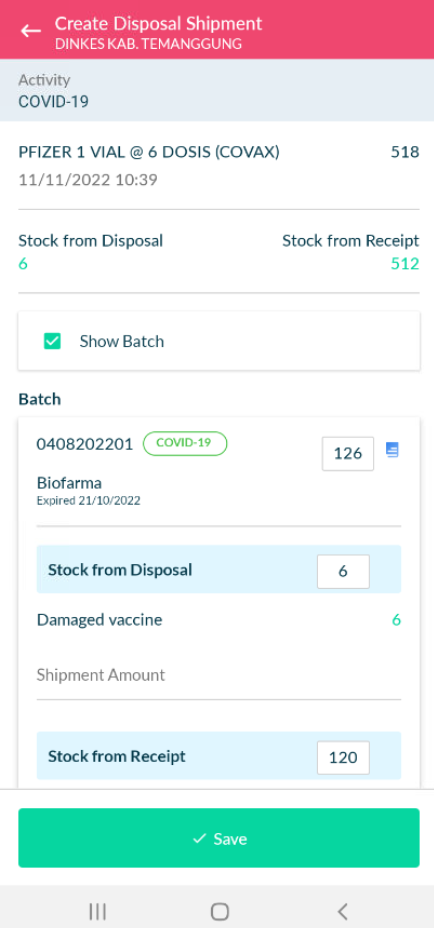
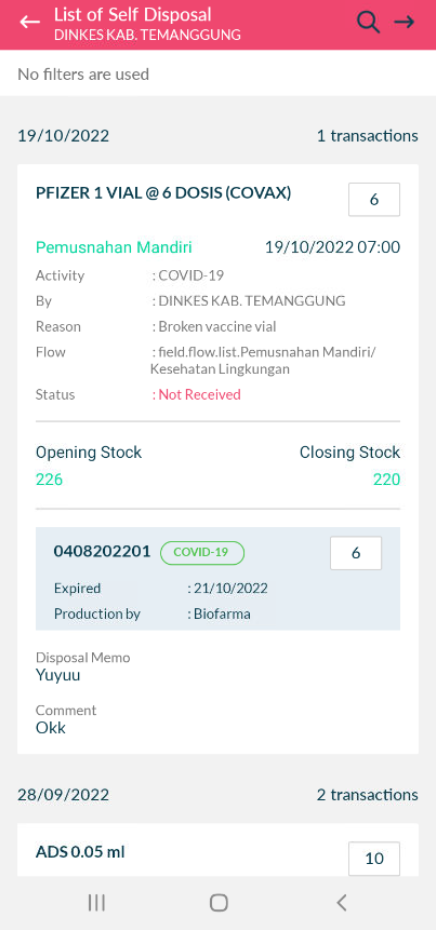
Disposal Management aims to record waste material in health facilities. Because not all waste can be disposed of at the facility, SMILE has the capability of sending waste to other facilities on a higher level. Because the user can see the reason for the discard transaction, they can decide whether to dispose of the waste themselves or send it to other facilities.
- This Disposal feature consists of several functionalities, including:
After a discard transaction is created, update the disposal stock directly.
View Stock of Disposal and get detail the reason of discard.
When the facilities dispose of material on their own, they can create a self-disposal transaction.
Sent to other facilities.
Receive from disposal distribution.
Cancel disposal distribution.